

Access Restrictions
Eligible plans can limit access to a paste by country, network type, IP address, or sign-in status. Use these controls when a link alone is not enough to decide who should be able to continue.
These restrictions are additional controls, not a substitute for encryption or a password when the content is sensitive.
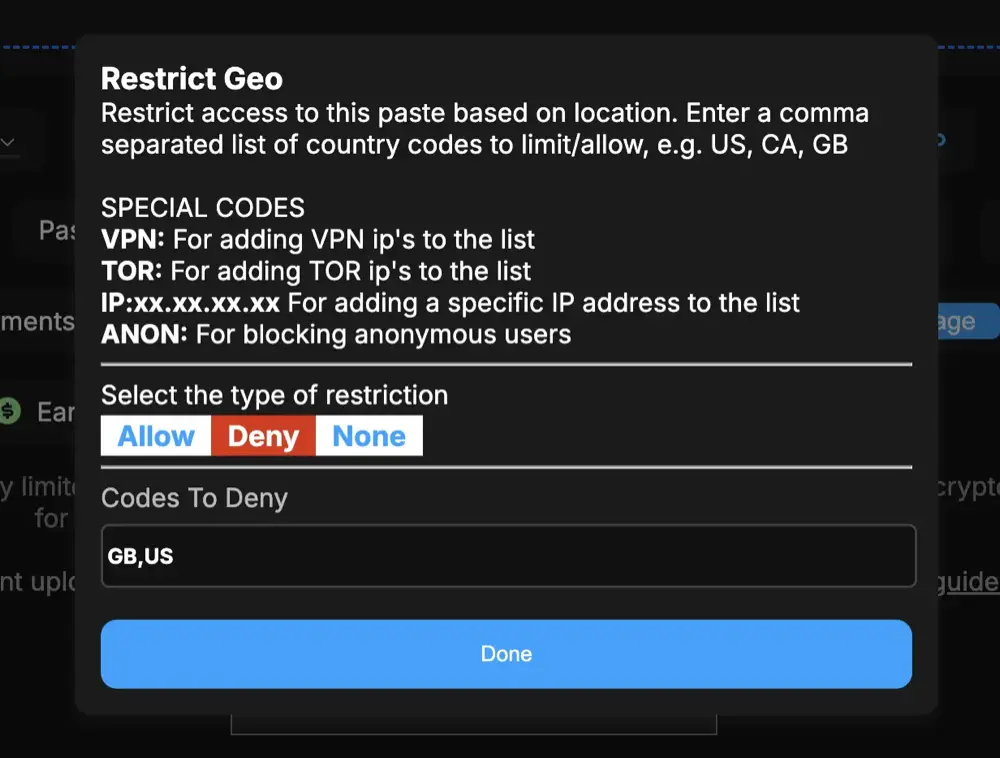
Set a restriction
Section titled “Set a restriction”- While creating or editing a paste, open Restrict Geo.
- Choose whether the entries are an Allow list or a Deny list.
- Add the countries, networks, addresses, or account status you want to match.
- Select Done, then save the paste.
What you can match
Section titled “What you can match”- Country — Use two-letter country codes such as
US,CA, orGB. - VPN — Match visitors whose connection is recognized as a VPN.
- Tor — Match visitors using the Tor network.
- IP address — Match a specific address.
- Anonymous visitor — Match someone who is not signed in.
You can combine several entries in one list.
Allow and deny lists
Section titled “Allow and deny lists”- Allow means only matching visitors can open the paste.
- Deny means matching visitors are blocked.
- None removes the restriction.
For example, an allow list containing US, CA, GB limits access to visitors in those countries. A deny list containing VPN, TOR blocks visitors using those network types.
What blocked visitors see
Section titled “What blocked visitors see”Visitors who do not meet the rules see an access-restricted message instead of the paste. Location and network detection can occasionally be inaccurate, so test the link from the kinds of connections your intended readers will use.
Paste owners can still open the manage page to change or remove a restriction.
Related: Paste settings · Manage paste link